Blog
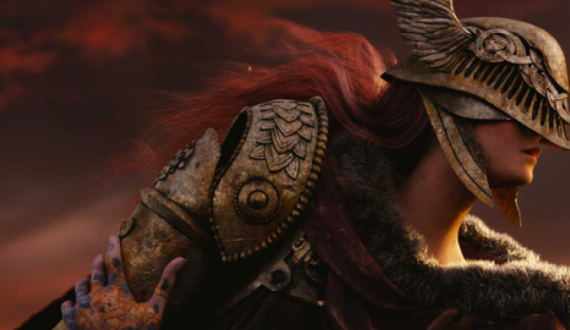
![Hidetaka Miyazaki’s Inspirations: Escape from Tarkov as an Ingenious Multiplayer Design img]() Mar 02, 2023 Benjamin Carter Hidetaka Miyazaki’s Inspirations: Escape from Tarkov as an Ingenious Multiplayer Design Gaming fans were thrilled when, today, Elden Ring's creator Hidetaka Miyazaki sat down for a chat with IGN, and even more excited when the announcement of a 2023 expansion was made. While talking to IGN, Miyazaki revealed that one of the games he has been looking to for inspiration recently is Escape from Tarkov, and he even went on to explain why this particular title has caught his eye.
When Miyazaki was asked what trends, ideas, or technology he finds inspiring, he responded that he has been keeping a close eye on how other developers are approaching multiplayer network design and game design. He went on to explain that he has been observing the changes as both a creator and a fan of the game and mentioned how players are now being used as a resource for the game's design itself. It is worth noting that the Souls series' multiplayer has been a major part of its experience for quite some time, so Miyazaki's interest in Tarkov is only to be expected.
Miyazaki's admiration for Escape from Tarkov could be associated with the challenge of completing an area only with the help of a full squad of players. It may also have something to do with the harsher consequences for dying to an enemy invader. Miyazaki’s quote about “using players as a resource for the game” is also reminiscent of other games, such as EVE Online, where players can influence the game world. The implications of Miyazaki's comments could potentially be seen in the upcoming Elden Ring expansion, Shadow of the Erdtree.
In conclusion, it has been confirmed that Elden Ring's success will not be influencing Hidetaka Miyazaki's upcoming projects, and he won’t be swayed by its remarkable popularity. The development team at FromSoft plan to keep on creating the games they want, and it appears that one aspect they have taken a particular interest in is multiplayer design. Tarkov's ingenious multiplayer design caught Miyazaki's eye, and it remains to be seen what kind of implementations will be made in the Shadow of the Erdtree expansion. Read More
Mar 02, 2023 Benjamin Carter Hidetaka Miyazaki’s Inspirations: Escape from Tarkov as an Ingenious Multiplayer Design Gaming fans were thrilled when, today, Elden Ring's creator Hidetaka Miyazaki sat down for a chat with IGN, and even more excited when the announcement of a 2023 expansion was made. While talking to IGN, Miyazaki revealed that one of the games he has been looking to for inspiration recently is Escape from Tarkov, and he even went on to explain why this particular title has caught his eye.
When Miyazaki was asked what trends, ideas, or technology he finds inspiring, he responded that he has been keeping a close eye on how other developers are approaching multiplayer network design and game design. He went on to explain that he has been observing the changes as both a creator and a fan of the game and mentioned how players are now being used as a resource for the game's design itself. It is worth noting that the Souls series' multiplayer has been a major part of its experience for quite some time, so Miyazaki's interest in Tarkov is only to be expected.
Miyazaki's admiration for Escape from Tarkov could be associated with the challenge of completing an area only with the help of a full squad of players. It may also have something to do with the harsher consequences for dying to an enemy invader. Miyazaki’s quote about “using players as a resource for the game” is also reminiscent of other games, such as EVE Online, where players can influence the game world. The implications of Miyazaki's comments could potentially be seen in the upcoming Elden Ring expansion, Shadow of the Erdtree.
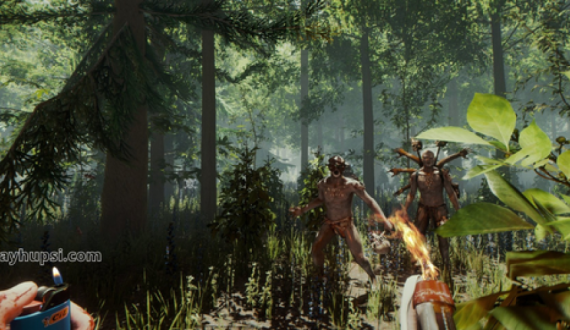
In conclusion, it has been confirmed that Elden Ring's success will not be influencing Hidetaka Miyazaki's upcoming projects, and he won’t be swayed by its remarkable popularity. The development team at FromSoft plan to keep on creating the games they want, and it appears that one aspect they have taken a particular interest in is multiplayer design. Tarkov's ingenious multiplayer design caught Miyazaki's eye, and it remains to be seen what kind of implementations will be made in the Shadow of the Erdtree expansion. Read More ![Diving Deeper Into the Absurdities of Sons of the Forest img]() Mar 01, 2023 Benjamin Carter Diving Deeper Into the Absurdities of Sons of the Forest The release of Sons of the Forest in early access was a big hit, with more than two million copies sold during the first 24 hours. It’s clear that the game is popular, but with the unfinished nature of early access, the game is riddled with bugs, issues, and strange scenarios that are worth exploring. Before we dive into the bizarre situations, let’s understand what early access means. Early access indicates that the game is still in development, with the team at Endnight Games frequently releasing updates to enhance and expand the game with new content and improvements. On the upper-left corner of the main menu, you can find information that the next major update will appear in nine days.
Weapon Viewing Animation
One of the strange scenarios that players may encounter is the weapon-viewing animation. In the game, you can find various weapons, such as axes, spears, bows, and firearms. After acquiring a gun, it automatically lands in your backpack. When you equip it for the first time, your character will start to examine it from different angles. This animation cannot be interrupted, and sometimes this forces players to miss out on opportunities, such as defending themselves from an attack. A good rule of thumb is to watch the weapons you find right away so that you don’t have to deal with the animation later.
Kelvin Coward, the First
Kelvin is your companion in the game and is a strong man who is not afraid of anything. Unfortunately, that’s not the case. Kelvin is somewhat of a coward, often running away from enemies instead of defending himself. This is strange, especially when compared to Virginia, who is a three-armed and three-legged woman. Initially, Virginia is afraid of you and will run away from you, but with a bit of patience and kindness, she will eventually stop running away and can be given weapons to defend herself. Hopefully, in the future, Kelvin will be able to use weapons and be more than just a helpful cart ox.
A Cure for Everything
In Sons of the Forest, you can find medicine in many places, such as containers... Read More
Mar 01, 2023 Benjamin Carter Diving Deeper Into the Absurdities of Sons of the Forest The release of Sons of the Forest in early access was a big hit, with more than two million copies sold during the first 24 hours. It’s clear that the game is popular, but with the unfinished nature of early access, the game is riddled with bugs, issues, and strange scenarios that are worth exploring. Before we dive into the bizarre situations, let’s understand what early access means. Early access indicates that the game is still in development, with the team at Endnight Games frequently releasing updates to enhance and expand the game with new content and improvements. On the upper-left corner of the main menu, you can find information that the next major update will appear in nine days.
Weapon Viewing Animation
One of the strange scenarios that players may encounter is the weapon-viewing animation. In the game, you can find various weapons, such as axes, spears, bows, and firearms. After acquiring a gun, it automatically lands in your backpack. When you equip it for the first time, your character will start to examine it from different angles. This animation cannot be interrupted, and sometimes this forces players to miss out on opportunities, such as defending themselves from an attack. A good rule of thumb is to watch the weapons you find right away so that you don’t have to deal with the animation later.
Kelvin Coward, the First
Kelvin is your companion in the game and is a strong man who is not afraid of anything. Unfortunately, that’s not the case. Kelvin is somewhat of a coward, often running away from enemies instead of defending himself. This is strange, especially when compared to Virginia, who is a three-armed and three-legged woman. Initially, Virginia is afraid of you and will run away from you, but with a bit of patience and kindness, she will eventually stop running away and can be given weapons to defend herself. Hopefully, in the future, Kelvin will be able to use weapons and be more than just a helpful cart ox.
A Cure for Everything
In Sons of the Forest, you can find medicine in many places, such as containers... Read More -
![New Hearthstone Expansion – March of the Lich King Mini Set img]() Feb 16, 2023 Benjamin Carter New Hearthstone Expansion – March of the Lich King Mini Set Blizzard Entertainment recently announced a new mini set for its popular card game, Hearthstone: Heroes of Warcraft. The set is called “March of the Lich King” and will feature 38 new cards that introduce some exciting new mechanics. Some iconic characters from the Warcraft universe, including Arthas the Lich King, will be included in the set. This new expansion is sure to be a great addition to the already vast collection of cards in Hearthstone.
The "March of the Lich King" mini set is set to bring two fresh keywords into the game: "Assault" and "Horde." Assault cards are powerful minions that can attack your opponent's hero directly, while Horde cards are minions that can be summoned with a single card. These two mechanics will undoubtedly introduce an additional strategic dimension to the game, enhancing its excitement.
Alongside these new mechanics, this set will include some iconic characters from the Warcraft universe. Arthas the Lich King is one of the most iconic characters in the Warcraft lore and will make an appearance in the set. He will be accompanied by other powerful characters such as Sylvanas Windrunner, Jaina Proudmoore, and Uther Lightbringer. Each of these characters will bring their own unique powers to the game.
The set will also introduce some new cards with the “Quest” keyword. Quests are special cards that require you to complete certain tasks in order to gain rewards. These rewards can be powerful cards that give you an advantage over your opponents. Completing quests will add another layer of depth and strategy to the game.
The "March of the Lich King" mini set is certain to bring about some thrilling new mechanics and characters to Hearthstone. Players can look forward to powerful Assault and Horde cards, iconic characters from the Warcraft universe, and special Quest cards that offer unique rewards. This set is sure to be an excellent enhancement to the game and will definitely keep players enthralled for numerous hours.
Feb 16, 2023 Benjamin Carter New Hearthstone Expansion – March of the Lich King Mini Set Blizzard Entertainment recently announced a new mini set for its popular card game, Hearthstone: Heroes of Warcraft. The set is called “March of the Lich King” and will feature 38 new cards that introduce some exciting new mechanics. Some iconic characters from the Warcraft universe, including Arthas the Lich King, will be included in the set. This new expansion is sure to be a great addition to the already vast collection of cards in Hearthstone.
The "March of the Lich King" mini set is set to bring two fresh keywords into the game: "Assault" and "Horde." Assault cards are powerful minions that can attack your opponent's hero directly, while Horde cards are minions that can be summoned with a single card. These two mechanics will undoubtedly introduce an additional strategic dimension to the game, enhancing its excitement.
Alongside these new mechanics, this set will include some iconic characters from the Warcraft universe. Arthas the Lich King is one of the most iconic characters in the Warcraft lore and will make an appearance in the set. He will be accompanied by other powerful characters such as Sylvanas Windrunner, Jaina Proudmoore, and Uther Lightbringer. Each of these characters will bring their own unique powers to the game.
The set will also introduce some new cards with the “Quest” keyword. Quests are special cards that require you to complete certain tasks in order to gain rewards. These rewards can be powerful cards that give you an advantage over your opponents. Completing quests will add another layer of depth and strategy to the game.
The "March of the Lich King" mini set is certain to bring about some thrilling new mechanics and characters to Hearthstone. Players can look forward to powerful Assault and Horde cards, iconic characters from the Warcraft universe, and special Quest cards that offer unique rewards. This set is sure to be an excellent enhancement to the game and will definitely keep players enthralled for numerous hours. -
![PUBG Mobile Announces Partnership Program for Southeast Asia img]() Feb 15, 2023 Benjamin Carter PUBG Mobile Announces Partnership Program for Southeast Asia PUBG Mobile, the popular mobile version of PlayerUnknown’s Battlegrounds, has announced its new partnership program for Southeast Asia. The program seeks to bring together local organizations and influencers to help promote the game in the region. This comes as part of PUBG Mobile's growth strategy for the region, which is becoming one of the most important markets for the game.
The partnership program will focus on creating new content, events, and campaigns that will help drive awareness and engagement with the game in Southeast Asia. Partners will be given access to exclusive in-game items, events, and rewards. They will also be able to collaborate with PUBG Mobile to create exclusive content and experiences that they can share with their audiences.
The program will also provide partners with the opportunity to network with other influencers and organizations, allowing them to create mutually beneficial relationships that can help them further their reach. PUBG Mobile is also looking to create more local tournaments and events for Southeast Asia, giving players the chance to compete for prizes and glory.
The program is open to influencers, streamers, teams, and organizations from all countries in the region. Those interested in applying can do so through PUBG Mobile's official website.
PUBG Mobile's partnership program for Southeast Asia is an exciting opportunity for local influencers, teams, and organizations to get involved in the game and help promote it in their region. With the help of these partners, PUBG Mobile can continue to grow and become one of the most popular mobile games in the region.
Feb 15, 2023 Benjamin Carter PUBG Mobile Announces Partnership Program for Southeast Asia PUBG Mobile, the popular mobile version of PlayerUnknown’s Battlegrounds, has announced its new partnership program for Southeast Asia. The program seeks to bring together local organizations and influencers to help promote the game in the region. This comes as part of PUBG Mobile's growth strategy for the region, which is becoming one of the most important markets for the game.
The partnership program will focus on creating new content, events, and campaigns that will help drive awareness and engagement with the game in Southeast Asia. Partners will be given access to exclusive in-game items, events, and rewards. They will also be able to collaborate with PUBG Mobile to create exclusive content and experiences that they can share with their audiences.
The program will also provide partners with the opportunity to network with other influencers and organizations, allowing them to create mutually beneficial relationships that can help them further their reach. PUBG Mobile is also looking to create more local tournaments and events for Southeast Asia, giving players the chance to compete for prizes and glory.
The program is open to influencers, streamers, teams, and organizations from all countries in the region. Those interested in applying can do so through PUBG Mobile's official website.
PUBG Mobile's partnership program for Southeast Asia is an exciting opportunity for local influencers, teams, and organizations to get involved in the game and help promote it in their region. With the help of these partners, PUBG Mobile can continue to grow and become one of the most popular mobile games in the region. -
![Top 5 Fortnite Alternatives: Epic Games That Will Keep You Entertained img]() Feb 14, 2023 Alison Harvard Top 5 Fortnite Alternatives: Epic Games That Will Keep You Entertained When it comes to the world of video games, Fortnite is undoubtedly one of the most popular and successful titles of all time. The battle royale game has attracted millions of players worldwide and has held its spot in the gaming industry for quite some time. However, if you’re looking for something different that offers an equally engaging and enjoyable experience, there are plenty of alternatives out there. Here are five great games that are sure to keep you entertained without having to rely on Fortnite's formulaic mechanics. Apex LegendsApex Legends is a free-to-play battle royale game developed by Respawn Entertainment and published by Electronic Arts. It was released in February 2019 for Microsoft Windows, PlayStation 4, and Xbox One. It is set in the same universe as Titanfall but does not contain any direct elements from it. In Apex Legends, up to 60 players compete on an ever-shrinking map in squads of three as they try to be the last team standing. Players can choose from a selection of unique “Legends” who each have their own abilities, playstyles, and personalities - making every match a unique experience. The game also features a comprehensive ranking system that encourages players to strive for higher levels of mastery over time. Call of Duty WarzoneCall of Duty Warzone is a free-to-play first-person shooter developed by Infinity Ward and Raven Software for Windows PC, PlayStation 4, and Xbox One platforms. It was released in March 2020 as part of the Call Of Duty franchise and set within the Modern Warfare universe, but it does not require ownership of either game to play it. The game supports up to 150 players at once who battle it out across two distinct maps - Verdansk (the traditional battlefield) or Rebirth Island (a smaller map). Players can choose between different modes, including Battle Royale mode, which pits 150 players against each other until only one team remains to stand, while Plunder mode rewards teams points based on kills made or objectives accomplished during gameplay - encouraging teamwork over individual performance. ValorantValorant is a tactical shooter video game developed by Riot Games for the Microsoft Windows platform and released on June 2nd, 2020, after closed beta testing earlier in April 2020. It combines elements from many other genres, such as MOBA (Multiplayer Online Battle Arena) games like League Of Legends and FPS (First Person Shooter) games like Counter Strike Global Offensive into one fast-paced title that focuses heavily on strategy rather than pure action – perfect for those who want something more than just aim & shoot combat mechanics found in many shooters today! The premise revolves around two teams consisting of 5 players, each battling it out against each other using...
Feb 14, 2023 Alison Harvard Top 5 Fortnite Alternatives: Epic Games That Will Keep You Entertained When it comes to the world of video games, Fortnite is undoubtedly one of the most popular and successful titles of all time. The battle royale game has attracted millions of players worldwide and has held its spot in the gaming industry for quite some time. However, if you’re looking for something different that offers an equally engaging and enjoyable experience, there are plenty of alternatives out there. Here are five great games that are sure to keep you entertained without having to rely on Fortnite's formulaic mechanics. Apex LegendsApex Legends is a free-to-play battle royale game developed by Respawn Entertainment and published by Electronic Arts. It was released in February 2019 for Microsoft Windows, PlayStation 4, and Xbox One. It is set in the same universe as Titanfall but does not contain any direct elements from it. In Apex Legends, up to 60 players compete on an ever-shrinking map in squads of three as they try to be the last team standing. Players can choose from a selection of unique “Legends” who each have their own abilities, playstyles, and personalities - making every match a unique experience. The game also features a comprehensive ranking system that encourages players to strive for higher levels of mastery over time. Call of Duty WarzoneCall of Duty Warzone is a free-to-play first-person shooter developed by Infinity Ward and Raven Software for Windows PC, PlayStation 4, and Xbox One platforms. It was released in March 2020 as part of the Call Of Duty franchise and set within the Modern Warfare universe, but it does not require ownership of either game to play it. The game supports up to 150 players at once who battle it out across two distinct maps - Verdansk (the traditional battlefield) or Rebirth Island (a smaller map). Players can choose between different modes, including Battle Royale mode, which pits 150 players against each other until only one team remains to stand, while Plunder mode rewards teams points based on kills made or objectives accomplished during gameplay - encouraging teamwork over individual performance. ValorantValorant is a tactical shooter video game developed by Riot Games for the Microsoft Windows platform and released on June 2nd, 2020, after closed beta testing earlier in April 2020. It combines elements from many other genres, such as MOBA (Multiplayer Online Battle Arena) games like League Of Legends and FPS (First Person Shooter) games like Counter Strike Global Offensive into one fast-paced title that focuses heavily on strategy rather than pure action – perfect for those who want something more than just aim & shoot combat mechanics found in many shooters today! The premise revolves around two teams consisting of 5 players, each battling it out against each other using... -
![Minecraft Player Creates Impressive Axolotl Statue img]() Feb 08, 2023 Benjamin Carter Minecraft Player Creates Impressive Axolotl Statue Minecraft is a game that has captured the hearts of millions of players around the world. Its immersive environment and variety of mobs, from passive to hostile, make the game even more enjoyable. Recently, one Minecraft player decided to take their love for the game to the next level by creating an impressive statue of one of the mobs available in the game: the axolotl.
The statue was created by a player known as 'AsperaX_OperaliX'. He shared this on Reddit. The statue stands one block tall and is made of quartz blocks. The axolotl is depicted with its iconic stripes and colors and is surrounded by two other quartz blocks to create a pedestal.
AsperaX_OperaliX said that they were inspired to create the statue after seeing another player's work with quartz blocks. They wanted to challenge themselves to create something more ambitious, and they chose the axolotl as their subject because they thought it would be both interesting and difficult.
To make the statue, AsperaX_OperaliX used a variety of tools and techniques. They used anvils to craft the quartz blocks into the desired shape, then used a pickaxe to carve out the axolotl's stripes and details. They also used a special technique called 'pixel art', which involves placing blocks in a certain pattern to create the desired effect.
AsperaX_OperaliX was very pleased with the result, and so were the other players in the game. The statue has become a popular sight in the Minecraft world and has been widely praised by players for its impressive craftsmanship and attention to detail.
Conclusion: The axolotl statue is a testament to the creativity and dedication of Minecraft players. It also serves as a reminder that Minecraft's mobs are more than just characters in the game; they can be sources of inspiration and motivation for players to create their own works of art.
If you'd like to leave a comment about the axolotl statue, please do so below.
Feb 08, 2023 Benjamin Carter Minecraft Player Creates Impressive Axolotl Statue Minecraft is a game that has captured the hearts of millions of players around the world. Its immersive environment and variety of mobs, from passive to hostile, make the game even more enjoyable. Recently, one Minecraft player decided to take their love for the game to the next level by creating an impressive statue of one of the mobs available in the game: the axolotl.
The statue was created by a player known as 'AsperaX_OperaliX'. He shared this on Reddit. The statue stands one block tall and is made of quartz blocks. The axolotl is depicted with its iconic stripes and colors and is surrounded by two other quartz blocks to create a pedestal.
AsperaX_OperaliX said that they were inspired to create the statue after seeing another player's work with quartz blocks. They wanted to challenge themselves to create something more ambitious, and they chose the axolotl as their subject because they thought it would be both interesting and difficult.
To make the statue, AsperaX_OperaliX used a variety of tools and techniques. They used anvils to craft the quartz blocks into the desired shape, then used a pickaxe to carve out the axolotl's stripes and details. They also used a special technique called 'pixel art', which involves placing blocks in a certain pattern to create the desired effect.
AsperaX_OperaliX was very pleased with the result, and so were the other players in the game. The statue has become a popular sight in the Minecraft world and has been widely praised by players for its impressive craftsmanship and attention to detail.
Conclusion: The axolotl statue is a testament to the creativity and dedication of Minecraft players. It also serves as a reminder that Minecraft's mobs are more than just characters in the game; they can be sources of inspiration and motivation for players to create their own works of art.
If you'd like to leave a comment about the axolotl statue, please do so below.